

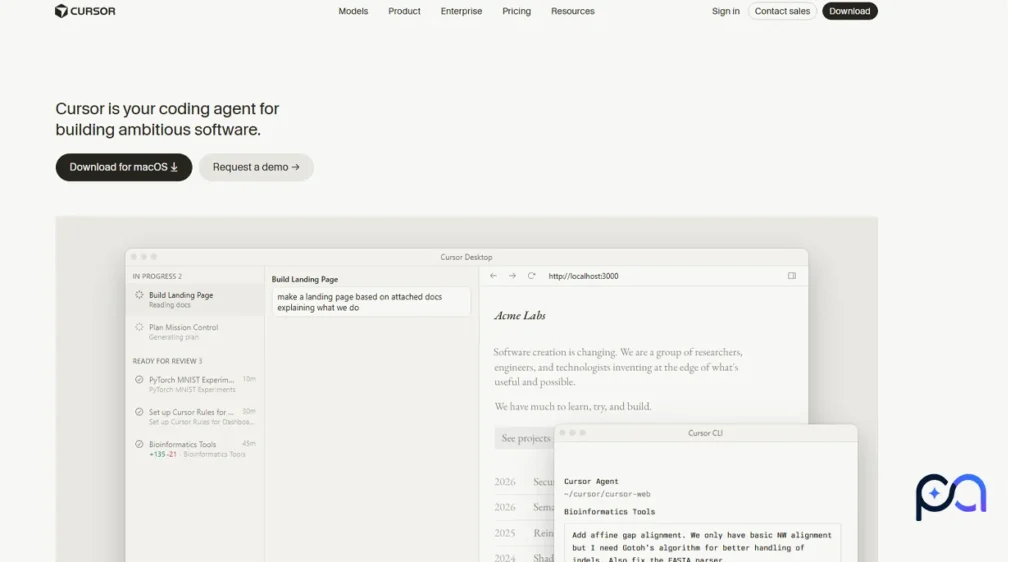
Cursor AI is an AI-focused code editor designed for developers who want more than simple code autocomplete. It can inspect an existing project, answer questions about the codebase, generate or modify code, edit several files in one task, run terminal commands, and use an Agent to work through larger development tasks. Cursor also offers predictive autocomplete through Cursor Tab.
The editor will feel familiar to VS Code users, while its AI features are more deeply integrated into the development workflow. Cursor currently has a free Hobby plan, while paid individual plans start at $20 per month. The main limitation is that Agent usage is not truly unlimited: how quickly you consume your included usage depends partly on the models and tasks you use.
Cursor is most relevant to developers who regularly use AI for debugging, understanding repositories, refactoring, building features, or working across several files. Someone who only wants occasional autocomplete may find a simpler or cheaper assistant sufficient.
Cursor Quick Facts
| Category | Details |
|---|---|
| Tool type | AI code editor and coding agent |
| Main purpose | Write, understand, modify, debug, and test software |
| Best for | Developers, freelancers, startup engineers and teams |
| Beginner friendly | Yes, but generated code still needs review |
| AI Agent | Yes |
| Code autocomplete | Cursor Tab |
| Multi-file editing | Yes |
| Codebase understanding | Yes |
| Terminal access | Yes |
| Browser testing | Yes |
| AI models | Cursor, OpenAI, Anthropic, Google, Meta and others |
| Free plan | Yes |
| Paid plans | From $20/month |
| Platforms | Windows, macOS and Linux |
| VS Code extensions | Many supported through Open VSX |
| MCP | Yes |
| Privacy Mode | Yes |
Cursor’s documentation currently supports Windows 10+, macOS 12+, and Linux, and its extension ecosystem uses Open VSX rather than providing every Microsoft Marketplace extension directly.
What Is Cursor?
Cursor combines a traditional code editor with AI tools that can actively work with your project.
Instead of copying a file into a chatbot, asking for code, and manually moving the result back, Cursor can search the repository itself, locate relevant files, read them, edit them and in Agent workflows run commands to check whether the changes work.
This makes Cursor particularly different from basic AI autocomplete.
A VS Code user will find much of the editing experience familiar, but Cursor has built its own AI workflows around that environment. Extension compatibility is broad rather than absolute: Cursor currently uses the Open VSX registry, and not every extension exclusive to Microsoft’s Marketplace is necessarily available.
What Can You Do With Cursor?
1. Write Code
You can ask Cursor to create functions, React components, API endpoints, tests, scripts, database logic, configuration files, or larger pieces of a feature.
The useful part is that it can inspect the existing project first instead of generating completely isolated code.
2. Edit Existing Code
Cursor can make targeted changes to existing code instead of rewriting everything.
This is useful for tasks such as changing a function, adding validation, converting JavaScript to TypeScript, changing an API response, or cleaning up repeated logic.
3. Understand a Codebase
You can ask questions such as:
- Where is authentication handled?
- Which component calls this API?
- Where is this database query created?
- Which files would need to change for this feature?
Cursor’s Agent includes file and folder search plus file-reading tools, allowing it to locate relevant code before answering or editing.
4. Edit Multiple Files
Many real programming tasks involve several files.
Cursor Agent can modify several files during the same task, making it suitable for feature work, refactoring, migrations, and changes that affect front-end, back-end, and tests together.
5. Use Cursor Agent
Agent is intended for larger tasks.
You give it a goal, and it can search the repository, inspect code, edit files, use tools and execute commands while working toward the result. Cursor AI also supports larger Projects where a coordinator can delegate work across agents.
6. Debug Errors
You can provide an error or ask Agent to investigate failing code.
A useful workflow is to let it inspect the relevant files, run the failing test or build command, make a change, and check the result again.
That still does not guarantee the diagnosis is correct.
7. Run Terminal Commands
Agent can run development commands directly, including tests and builds.
Current Cursor versions use execution controls such as Auto-review, Allowlist and Run Everything. Cursor also applies protections for actions such as file deletion and access outside the workspace.
8. Use Cursor Tab
Cursor Tab handles predictive editing while you type.
It is the part of Cursor AI aimed at small, continuous coding suggestions rather than assigning a full task to Agent.
Main Cursor Features
| Feature | What It Does | Why It Matters |
|---|---|---|
| Agent | Performs multi-step coding tasks | Useful for features and larger fixes |
| Cursor Tab | Predicts code and edits | Speeds up everyday coding |
| Codebase Search | Finds relevant project code | Reduces manual file hunting |
| Multi-file Editing | Changes several files | Useful for real feature work |
| Terminal Tools | Executes commands | Can run tests and builds |
| Browser Tools | Opens and tests web apps | Helpful for front-end debugging |
| Rules | Gives Agent project instructions | Keeps work closer to your conventions |
| MCP | Connects external tools/data | Extends what Agent can access |
| CLI | Runs Cursor Agent from terminal | Useful outside the desktop editor |
Cursor’s browser integration can inspect pages, screenshots, console output and network traffic, while MCP allows Agent to use external tools subject to configured permissions.
Testing Cursor A Practical Example
A review is more useful when the reader has something concrete to try.
For a simple test, ask Cursor AI to build a reusable product component inside an existing React project.
Test Task
Create a responsive product card in React and TypeScript while respecting the project’s existing styling approach.
Prompt Used
Create a reusable React product card using TypeScript.

Requirements:
- Product image
- Product title
- Current price
- Old price
- Discount badge
- Star rating
- Add to Cart button
- Responsive layout

Use the styling approach that already exists in this project.

Before making changes:
1. Inspect the relevant files.
2. Reuse existing components where appropriate.
3. Do not install new dependencies unless they are genuinely necessary.

After implementation:
- Check TypeScript errors.
- Run the relevant build or test command.
- Explain which files you changed.
What Cursor Should Do
For this test, a useful Agent run should:
- Inspect the project before generating code.
- Identify where reusable components belong.
- Create or edit the relevant files.
- Add appropriate TypeScript types.
- Follow existing styling conventions.
- Run a test or build if available.
- Summarize the changes afterward.
Who Is Cursor AI Designed For?
Cursor AI Is Most Useful For
- Professional developers especially those able to review AI-generated code.
- Freelancers useful when one developer works across several parts of a project.
- Full-stack developers Agent can move across front-end, API and test files.
- Startup developers helpful for rapidly implementing and iterating on features.
- Developers joining an existing project codebase search can help explain unfamiliar architecture.
- Developers using AI every day deeper Agent workflows are where Cursor differs most from simple autocomplete.
Cursor May Be Unnecessary For
It may not be the best fit if you only want occasional autocomplete, rarely use AI when coding, need all AI inference to remain completely local, depend heavily on a VS Code Marketplace extension unavailable through Cursor, or simply want the lowest-cost coding assistant.
Cursor Advantages
- Deep integration between AI and the actual project.
- Agent can inspect and edit multiple files.
- Terminal commands can be part of the workflow.
- Useful repository-aware questions.
- Choice between several AI model families.
- Familiar environment for many VS Code users.
- Cursor Tab for lighter everyday coding.
- MCP, CLI and cloud-agent workflows for advanced users.
Cursor Limitations
- Generated code can still be wrong.
- Agent may change more code than necessary.
- Repository context can be incomplete or misunderstood.
- Model choice affects both quality and usage cost.
- Heavy Agent usage can exceed the entry subscription price.
- Not every VS Code Marketplace extension is available.
- AI features are not completely local.
- Large AI-generated diffs can take significant time to review.
How to Sign Up and Start Using Cursor
- Open the official Cursor website and download the correct installer for Windows, macOS or Linux.
- Install Cursor and sign in.
- Open an existing project folder.
- Install the extensions you require.
- Start with a simple question about the repository.
- Use Cursor Tab while coding normally.
- Open Agent when you need a multi-step change.
- Select a model when appropriate.
- Describe the task and important constraints.
- Review every changed file.
- Run your normal tests or build checks before committing.
Cursor’s official quickstart similarly starts with installation/sign-in, opening a folder, asking about the codebase, making a small change and reviewing the result.
Cursor Pricing
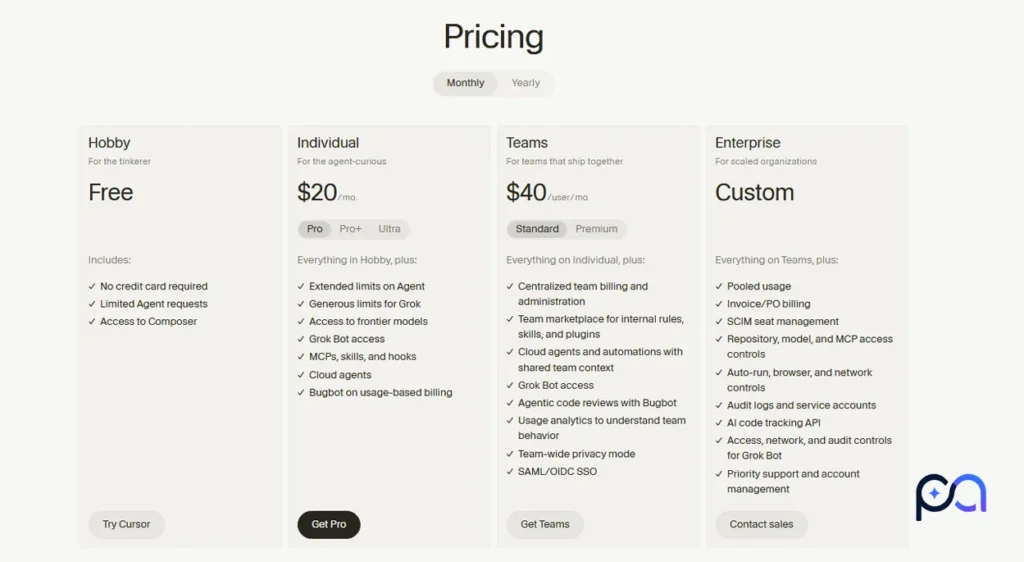
Prices last verified: October 4, 2026
| Plan | Price | Best For | Main Limitation |
|---|---|---|---|
| Hobby | Free | Testing Cursor | Limited Agent usage |
| Pro | $20/month | Regular individual use | Included Agent usage is finite |
| Pro+ | $60/month | Frequent Agent use | Higher monthly cost |
| Ultra | $200/month | Heavy multi-agent users | Expensive for ordinary use |
| Teams Standard | $40/user/month | Professional teams | Per-user pricing |
| Teams Premium | $120/user/month | Heavy team Agent use | High per-seat price |
| Enterprise | Custom | Larger organizations | Requires custom agreement |
Cursor’s current pricing documentation says Pro, Pro Plus and Ultra include two main usage pools: one for Cursor AI Models and another for third-party models. Different models consume the allowance at different rates. On-demand usage can be enabled when the included amount runs out.
Cursor itself estimates that daily Tab users and limited Agent users often remain within included usage, while daily Agent users commonly reach $60–$100 per month in total usage, and heavier multi-agent or automation workflows can reach $200+. These are Cursor’s estimates rather than guaranteed bills.
Which Cursor Plan Makes Sense?
Hobby is the sensible place to learn the interface.
Pro is the normal starting point for an individual developer who expects to use Agent regularly.
Pro+ is more relevant once the included Pro usage becomes a real constraint rather than something you upgrade to in advance.
Ultra makes more sense for developers running heavy Agent or automation workloads than for ordinary coding.
Teams should evaluate the team plans rather than assuming an individual subscription provides the administration and controls required for company code.
Is Cursor Free?
Yes.
Cursor currently offers a Hobby plan with no credit card required, limited Agent requests and access to Composer.
The important distinction is that Cursor being free to start does not mean unlimited AI coding is free.
Paid plans increase Agent limits and provide broader access to frontier models, cloud agents and other advanced capabilities.
Which AI Models Does Cursor Support?
Cursor’s model catalog changes frequently, so listing every available model creates unnecessary clutter.
The main current families include:
| Model / Family | Provider | Practical Use |
|---|---|---|
| Grok 4.7 | Cursor / SpaceXAI | Long and complex Agent tasks |
| Composer 2.5 | Cursor | Everyday coding with lower usage cost |
| Claude | Anthropic | General coding and reasoning |
| GPT | OpenAI | Coding and reasoning |
| Gemini | Coding and larger-context tasks | |
| Muse | Meta | Additional lower-cost model option |
Cursor currently lists models including Claude Opus 5.5, Claude Sonnet 5.5, Gemini 3.1 Pro, Gemini 3.8 Flash, GPT-5.6 Luna/Terra/Sol, Composer 2.5, Grok 4.5–4.7 and Muse Spark 1.3. Availability can depend on the plan.
There is no need to use the most expensive model for every request. Fast or lower-cost models can make more sense for simple edits, while difficult debugging or long Agent tasks may justify a stronger reasoning model.
Privacy and Source Code
Privacy deserves attention because Cursor AI works directly with source code.
- When AI features are used, relevant prompts and code context can be sent to model providers.
- With Privacy Mode enabled, Cursor AI states that customer data is not used for training and maintains zero-data-retention agreements with its providers, subject to stated abuse/safety exceptions.
- If Privacy Mode is disabled, Cursor says codebase data, prompts, editor actions and snippets may be stored and used to improve or train its models.
- Even when using your own API key, Cursor says requests still pass through its backend for final prompt construction.
- Cursor should therefore not be described as a fully local AI coding system.
For a personal hobby project, this may simply be a settings decision. For confidential company code, the privacy policy, security requirements and organizational rules deserve a proper review.
Cursor AI Alternatives
| Tool | Best For | Main Difference |
|---|---|---|
| GitHub Copilot | Keeping your current IDE | Available across many editors rather than requiring Cursor |
| Claude Code | Terminal-oriented workflows | CLI-first agent experience |
| OpenAI Codex | OpenAI/ChatGPT coding workflows | Coding agent integrated into OpenAI’s ecosystem |
| JetBrains Junie | JetBrains developers | Integrated closely with JetBrains tooling |
| Other agent-first editors | Developers comparing editor-centered agents | Workflow and pricing differ |
GitHub Copilot currently has a free plan and paid individual plans beginning at $10/month for Pro, which makes it an obvious comparison for users who want to remain in their existing IDE.
JetBrains Junie is particularly relevant to people who already use IntelliJ IDEA, PyCharm, WebStorm or other JetBrains tools rather than developers interested in switching to a VS Code-style editor.
Is Cursor based on VS Code?
Cursor uses a VS Code-derived editing experience, which makes it familiar to existing VS Code users. Its AI Agent, Tab system and wider AI workflow are Cursor-specific.
Can Cursor edit several files at once?
Yes. Multi-file work is one of Agent’s main uses.
Can Cursor run terminal commands?
Yes. Agent can run shell commands according to its configured Run Mode.
Can Cursor build an entire app?
It can assist with substantial multi-file features and larger projects, but that does not mean it can reliably create and validate an entire production application without developer oversight.
Is Cursor good for beginners?
It can help beginners understand code and fix mistakes, but beginners should avoid blindly accepting generated solutions they cannot explain or maintain.
Does Cursor have a CLI?
Yes. Cursor has a standalone Agent CLI for terminal workflows.
Does Cursor AI support MCP?
Yes. MCP servers can give Agent access to external tools and data sources, and Cursor applies approval/run-mode controls to those tools.
Is Cursor Worth Using?
Cursor makes the most sense for developers who want AI to do more than suggest the next line of code.
Its main appeal is that Agent can operate across the repository: searching files, modifying several parts of a project, running commands, checking results and working with external tools. Cursor Tab then covers the smaller day-to-day completion workflow.
The trade-off is control. More autonomy means more code and actions to review. Cursor AI can misunderstand architecture, generate incorrect code, consume more usage than expected on larger tasks, or make unnecessary changes. Heavy Agent users should also evaluate the real monthly usage cost rather than looking only at the $20 Pro subscription price.
For a developer who frequently debugs existing projects, performs multi-file refactors or uses AI throughout the workday, Cursor offers a workflow worth comparing seriously.
For someone who only wants code completion, already likes their current IDE, or rarely uses coding agents, a product such as GitHub Copilot—or simply staying with the existing setup—may make more sense.
Similar AI Tools

Claude AI – Coding, Content Creation & Data Analysis Compared.

GitHub Copilot in 2026 What It Can Do, What It Costs, and Its Limits

Kimi Code Review 2026 Is K2.7 the Best Open-Source Coding Agent for the Price?
